I've been using pen tablets of various forms in the field of architecture for the last 15 years. I purchased this tablet because a larger working area is always better. I've been using it for several months now. Previously I'd been doing all my work on the limited display area of iPads and pen-enabled Windows machines. Overall I am happy to own this tablet and pleased with the value for the money. I would make the same purchase knowing what I know now. If I could afford the Wacom alternative I'd buy it, but I'm an architect, not a stockbroker.
Even with all the reviews out there, it was a bit of a leap of faith for me to purchase, because my needs are not the most common use case, and because even people who say they are "graphic artists" seem to have widely different perceptions of the precision and responsiveness of the many tablets I've used and researched. The things I use this tablet for most are marking up drafted drawings in pdf form (Drawboard PDF and Drawboard Projects), marking up screen shots of drawings and 3D models, digital drafting in a sketching app (Concepts), and hand note-taking (OneNote).
Here's what I like–the display is great for my needs, which do not require highly precise color accuracy, but do require high resolution to see detail clearly. I really love having the larger working area. It's not just nice to have, it actually improves the quality of my work, because I'm able to see more context as I'm working, and because I spend less time panning and zooming. (The two of you who have ever reviewed an honest-to-goodness on-paper full-size drawing set will know what I'm talking about, and appreciate my dream of having a "desk display" large enough to show 30" x 42" sheets at full size and 8K resolution. But enough about that.) The feel of the contact between pen and screen is good, not as nice as the screen protectors on my iPad and laptop which are designed to more closely mimic the feel of paper, but enough texture that it doesn't feel overly slick or slippery. Connectivity is good, no issues working on my PC, with one exception I'll note later. The extra ports for plugging things in are great.
Here's what I don't like, and this list is longer not because it's a bad tablet but because I want to lay out everything as clearly as I can.
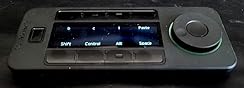
1) The first and biggest issue is not being able to use touch. Not a flaw, because this is part of keeping the cost down, but it makes using apps that are built around touch more inefficient. For some people it could actually be a pro, because you never have to worry about accidental finger/palm touches. I thought the keypad would help make up for this issue, but in practice getting all the scrolling and panning features to work smoothly and consistently across apps was problematic, and always less intuitive than touch. This has as much to do with the apps as with the keypad, so I don't blame Huion, but it's something to be aware of. The solution I ended up with is to mirror the tablet with my laptop (Surface Studio Pro) which I mostly keep in tablet mode on a stand. I use the touch screen of the Surface for pinch/zoom/pan, while I draw on the Huion. (This works well for me partly because I have an additional large display, so I don't mind losing the screen real estate.) Now that I'm set up this way I really don't use the keypad at all.
2) The biggest daily annoyance–the pen has to be really close to the screen for button presses to register. I'm often trying to flip between the pen and the eraser and end up pushing the button, still on the same tool, pushing the button again, still on the same tool, thinking I'm close enough but I'm not. I don't know if Wacom is better about this but it's the thing that probably interferes most with efficient work and being "in the groove". It's especially annoying in online meetings when it slows down the exchange of information. Maybe other people will be better at this than me, but coming from the Tablet PC/iPad world where that just doesn't happen, it's frustrating.
3) The second-biggest annoyance, and a problem that might be unique to Huion, is that if I am using both buttons on the pen, they don't work simply as I would expect them to. Each button seems to function as a toggle between two states instead of a press-and-hold to keep active. If I toggle the function of the upper button, it sometimes forgets (or maybe I forget) the state of the lower button, or I have to toggle the upper button back to its original state to get the lower button to work properly. It's difficult to explain clearly, but the result can be a lot of confusion and button presses to figure out how to get my pen back. Sometimes I just have to tap the tool I want to reset it. Since I now mostly don't use the upper button (see next point), it's not an issue, but I sure wish I could have a smoothly functioning two-button solution like I do with my Surface. (Apple, I'm looking at you too . . .)
4) A problem that's by no means unique to Huion or their fault, but it so happens that the apps I am using receive frequent updates (great!) which cause the pen to forget any custom button setups for that app (not so great). This happens with other devices that let me customize input by app, like my mouse, but updates happen more often for the apps that I want to customize for this tablet, so it creates a lot more work. If I could just relink the custom settings to the new app it would be easier, but as it is I have to notice that the pen isn't working properly, delete the current app profile, then go dig out the app buried deep in the Windows folder to create a new profile, then reprogram the buttons. The default for the upper button doesn't work well for my primary apps so I end up just not using it.
5) The same goes for the keypad. Because of my two-screen workaround this isn't a problem anymore, but it would be if I didn't have the luxury of a second external display. It would be a lot of work to recreate the custom keypad setup for several apps on a weekly basis. This is the other reason I don't use the keypad anymore.
6) The inking isn't as precise and fluid as either my Surface or my iPad. I definitely notice the difference. It's plenty sufficient to be functional, but I do miss the fluid feeling and I do lose a step in accuracy/clarity. Again, it's certainly good enough to get the job done. If I were a graphic artist or if I were trying to do really artistic architectural sketches on it instead of markups and drafting, I might feel differently.
7) This has been less of an issue of late, but when I was first using the tablet it would often forget which monitor was my "workspace", so I would start drawing and nothing would happen. Then I would realize that the pen was actually functioning as a mouse on my larger, primary monitor. I don't know if there was a firmware update that improved this, but where it used to happen almost daily, now it only happens every month or so. The app for setting up the monitor isn't organized as efficiently as it could be, which makes it an extra step more time consuming to fix the problem, but overall pretty minor in my list of life's problems.
Again, I'm happy to own this tablet and would buy it again for what I do. It's great that there's a more affordable alternative to Wacom, because if there weren't I would have no tablet.






Report